Genova
Tariff Management
Creating and Managing Tariffs in Genova
This guide provides a step-by-step process for creating and managing tariffs within the Genova system. Each step includes a screenshot to visually guide you through the process, ensuring a smooth and efficient workflow. Follow these instructions carefully to avoid errors.
Start url: http://localhost/vanguard-genova/cia/admin
Tab Name: Short Periods - GENOVA INSURANCE
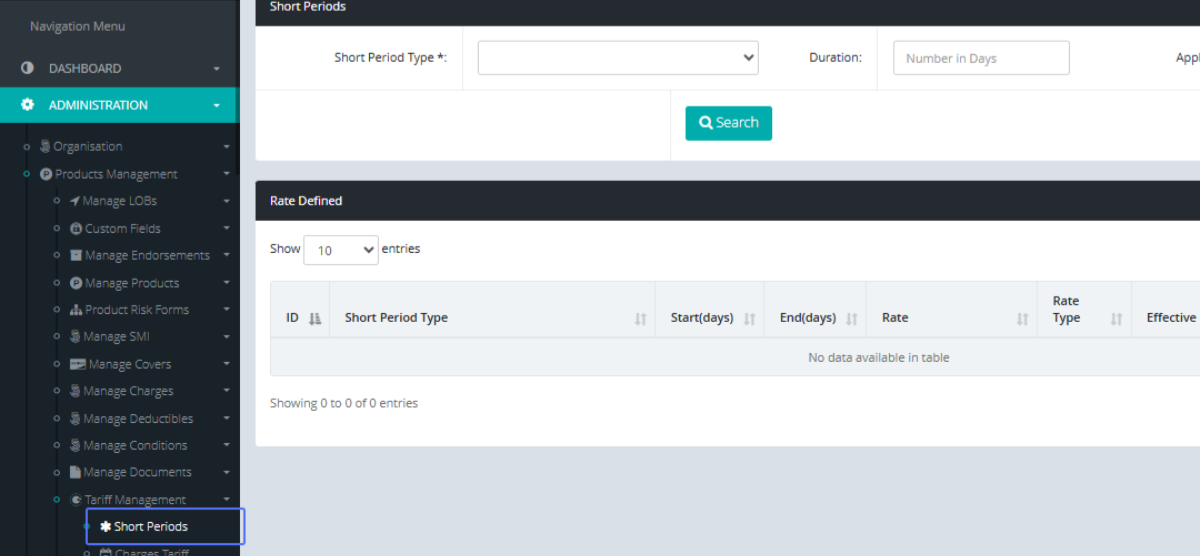
Click on the link "Short Periods"
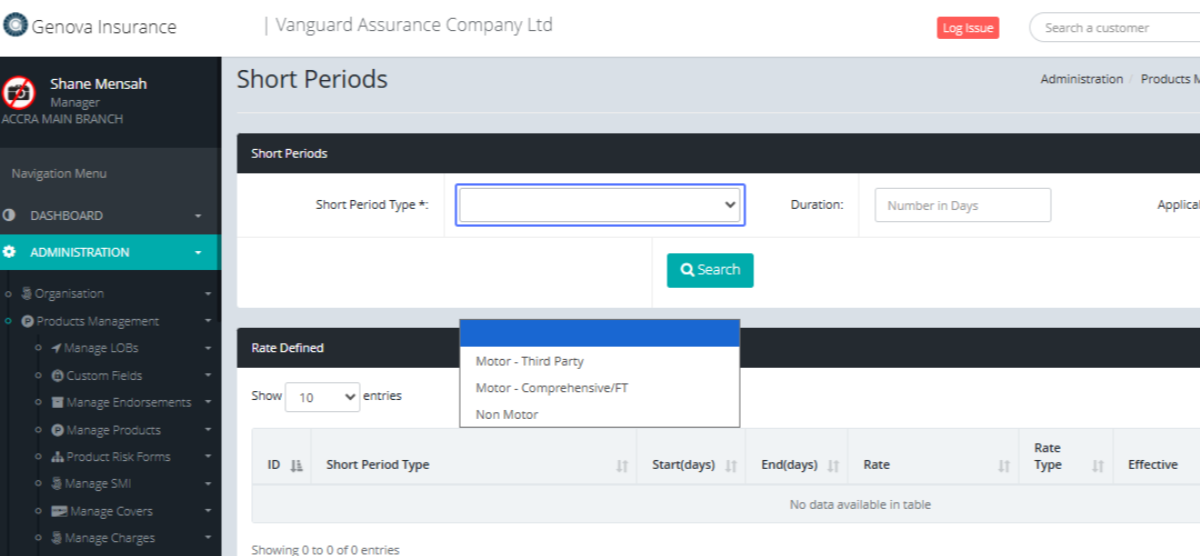
Click on desired item within the dropdown list.
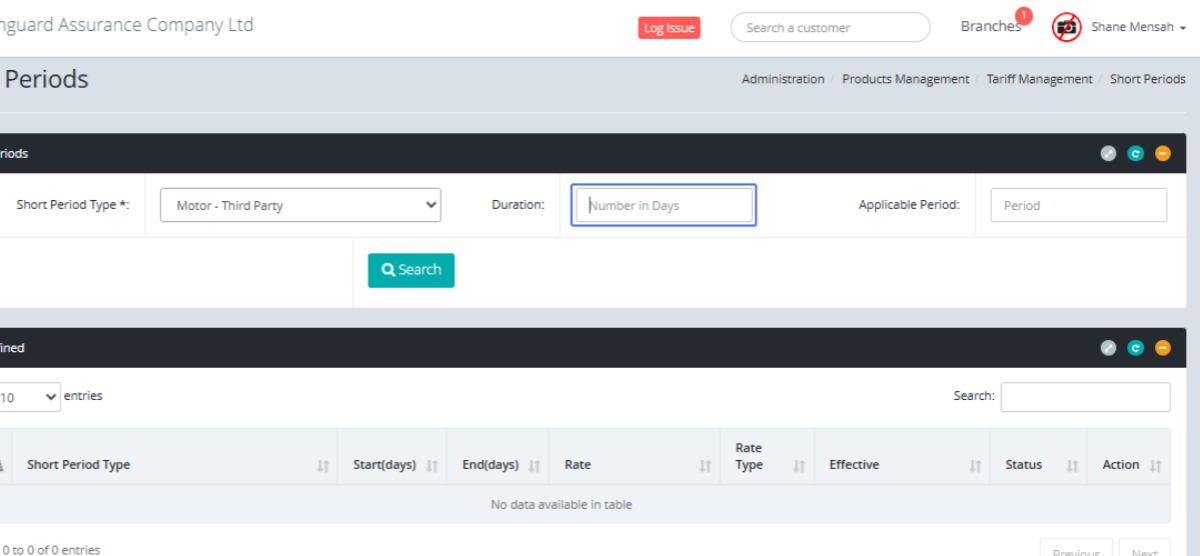
Click on the input and set the duration
Click on the input and select the Date from the calendar modal.
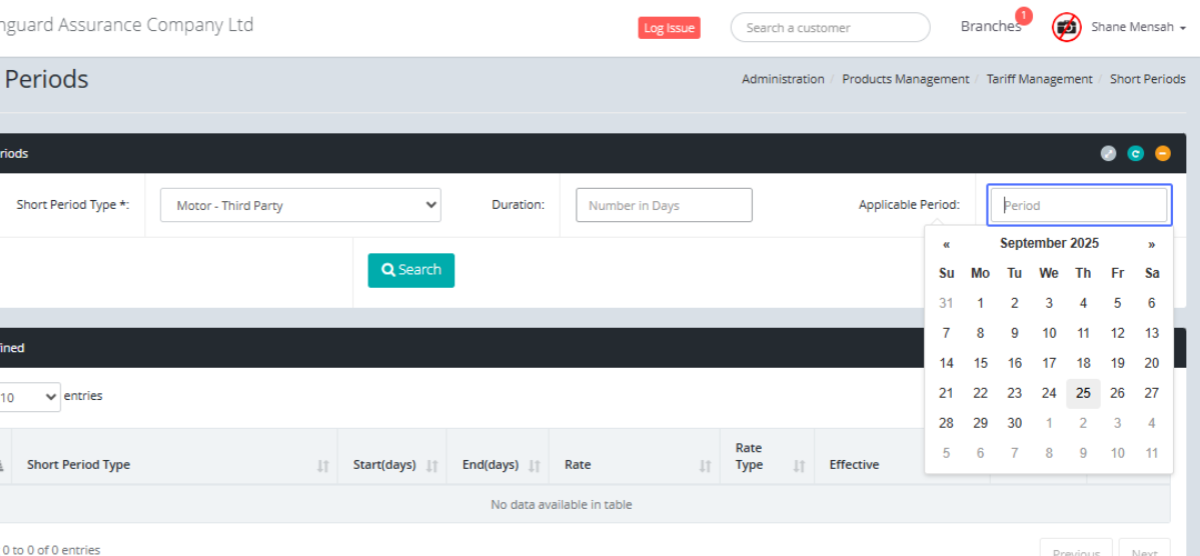
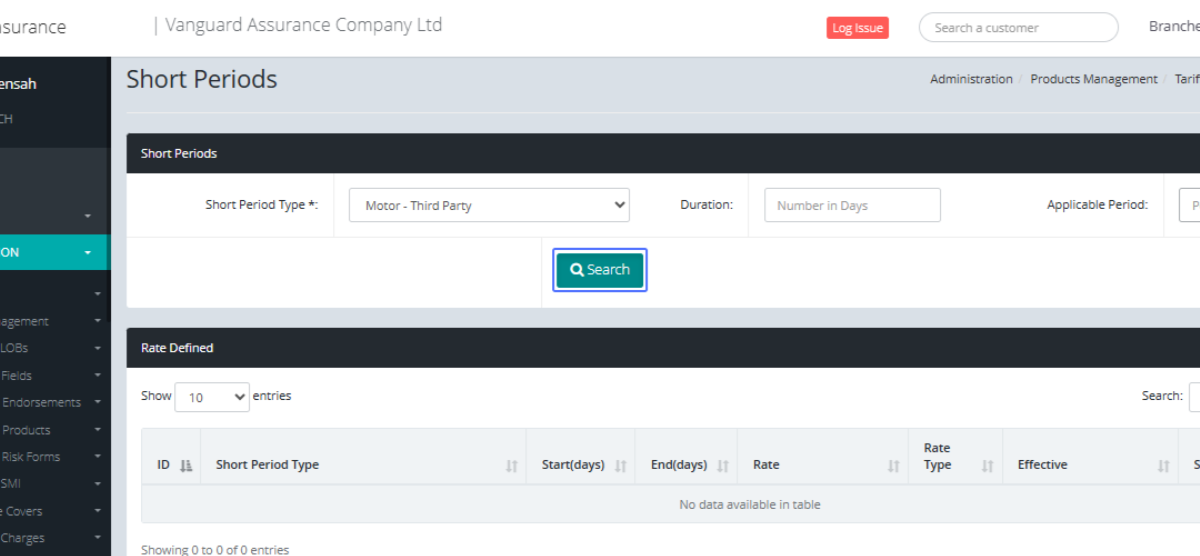
Click on the button "Search" to search for available tariffs
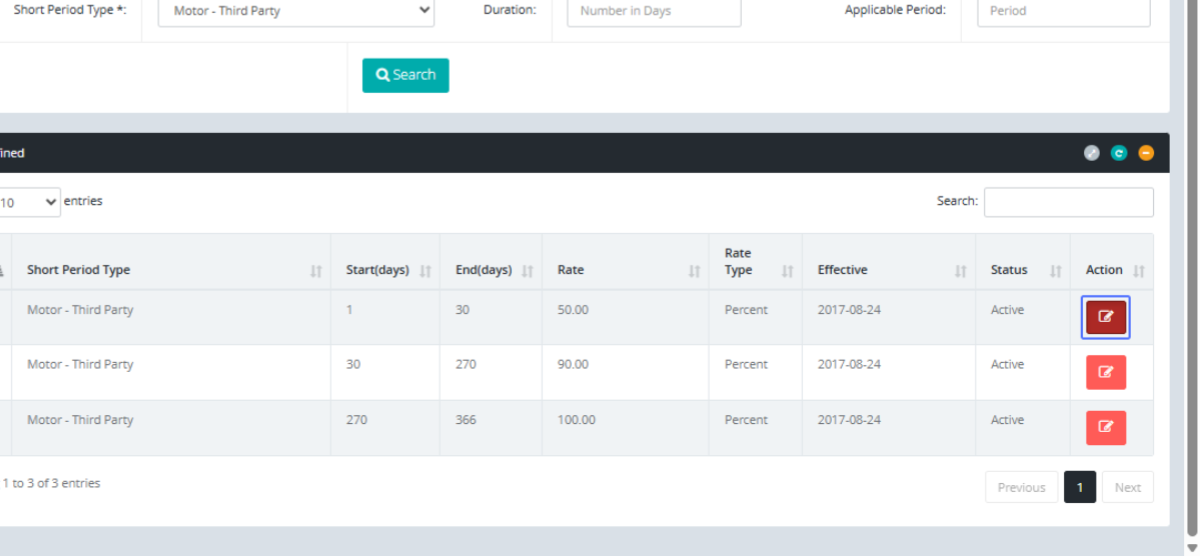
Click on the “Action” button to edit the item within the list
Click on the Short period type from the drop down.
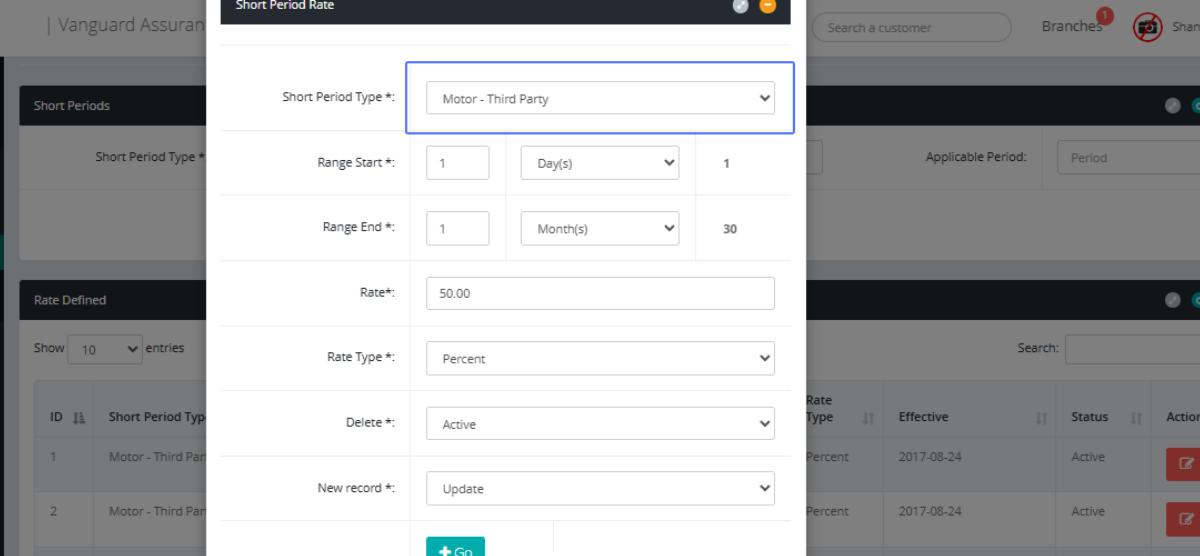
Set the Start Date range by modifying the items provided.
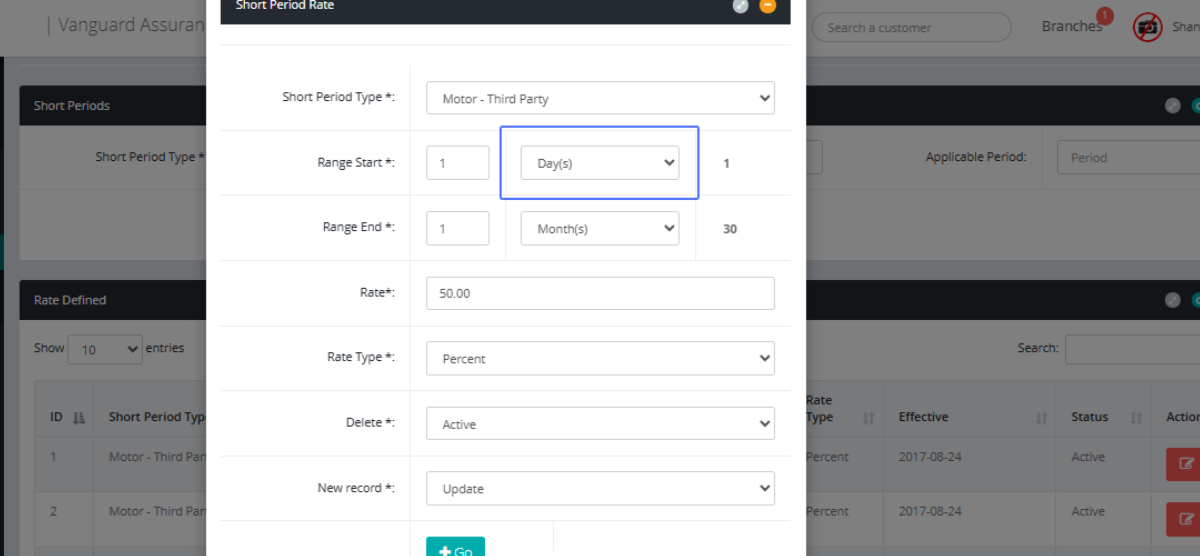
Set the End Date range by modifying the items provided
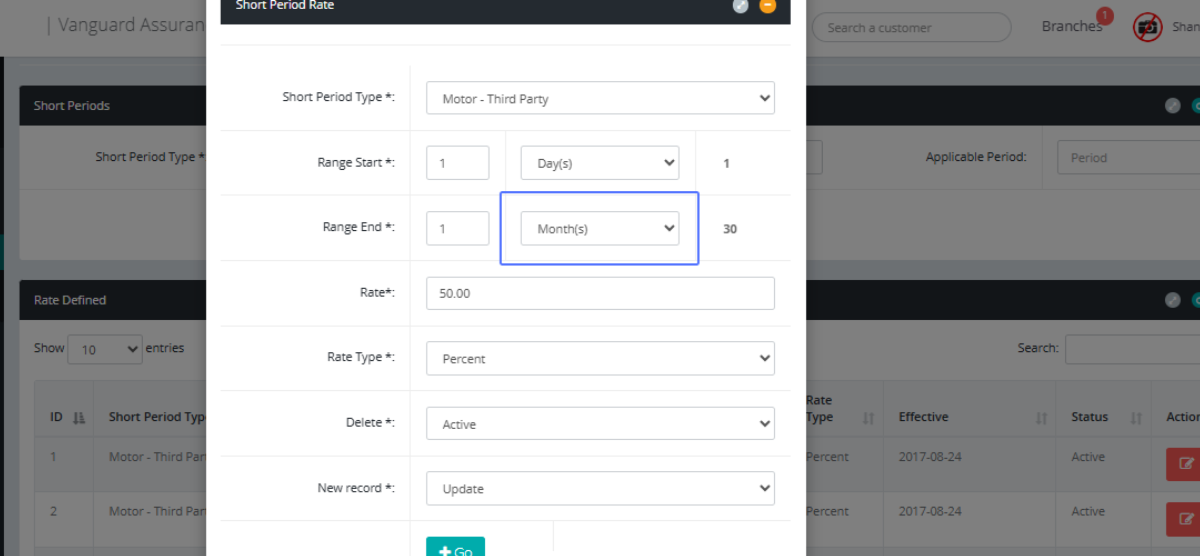
Set the rate within the rate field.
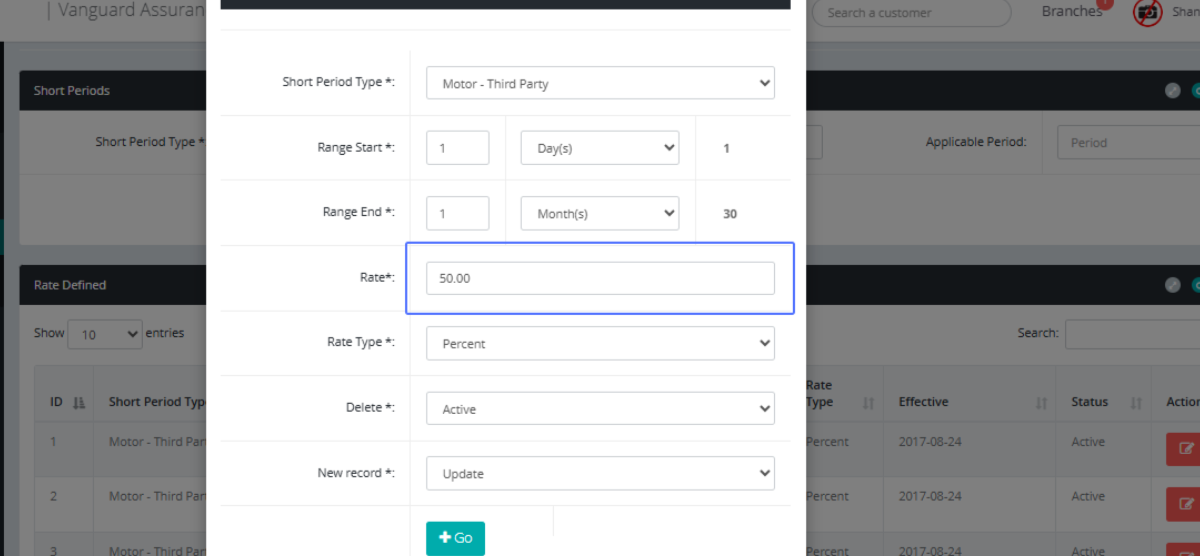
Set the Rate Type from the dropdown list that has been provided.
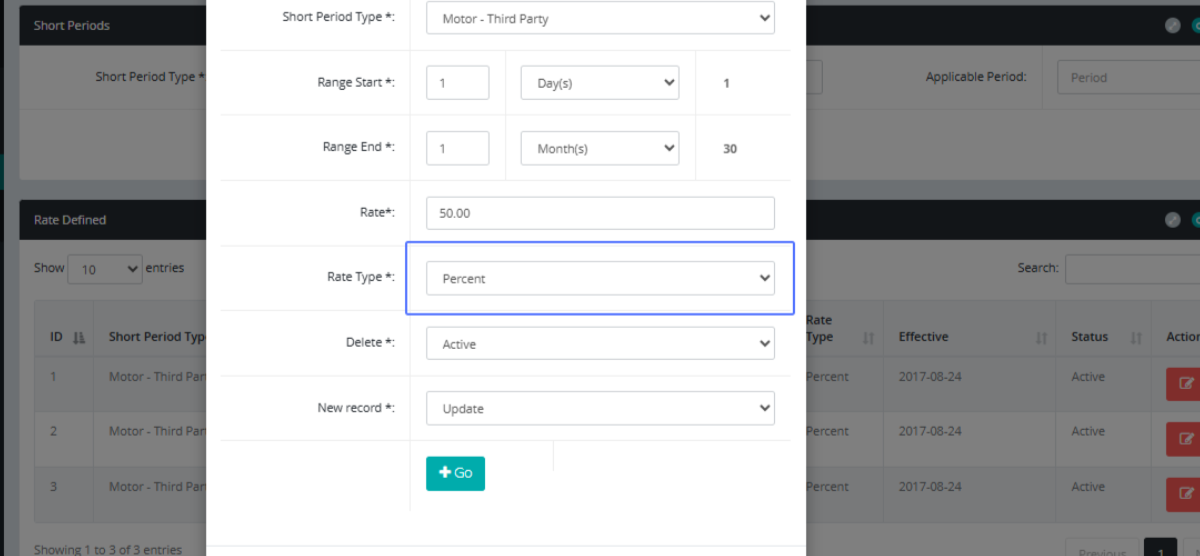
Set the Delete from the dropdown that has been provided.
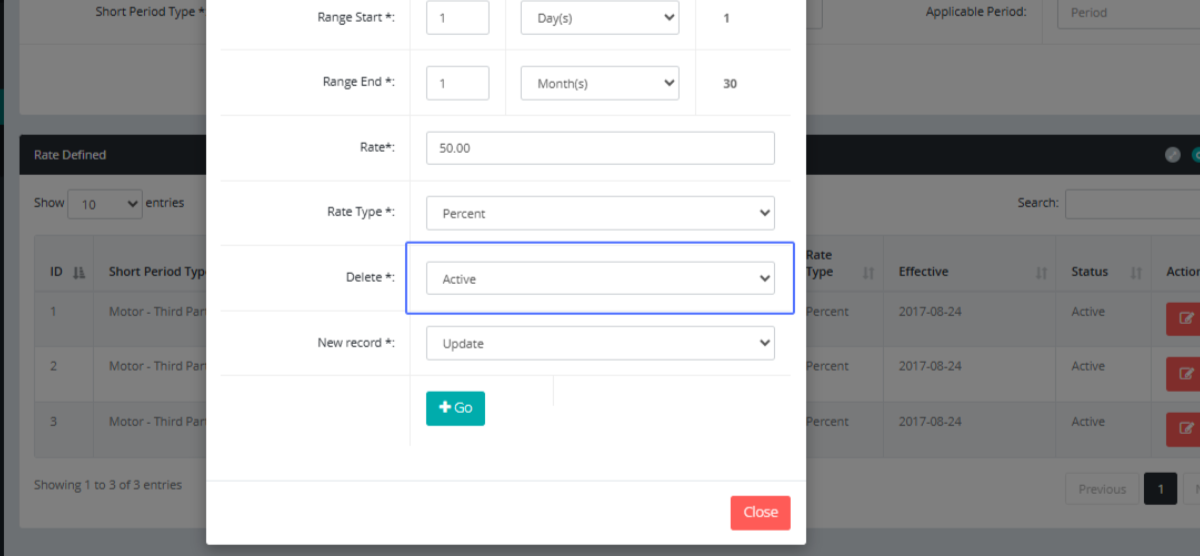
Set the New Record field from the dropdown.
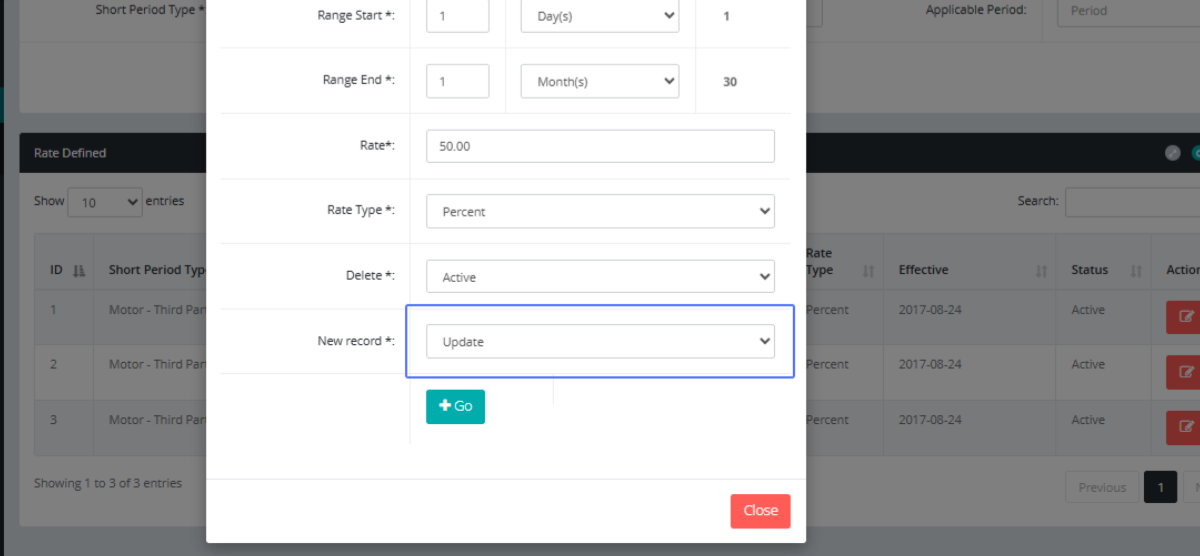
Click on "Go" so save the settings you have just added.
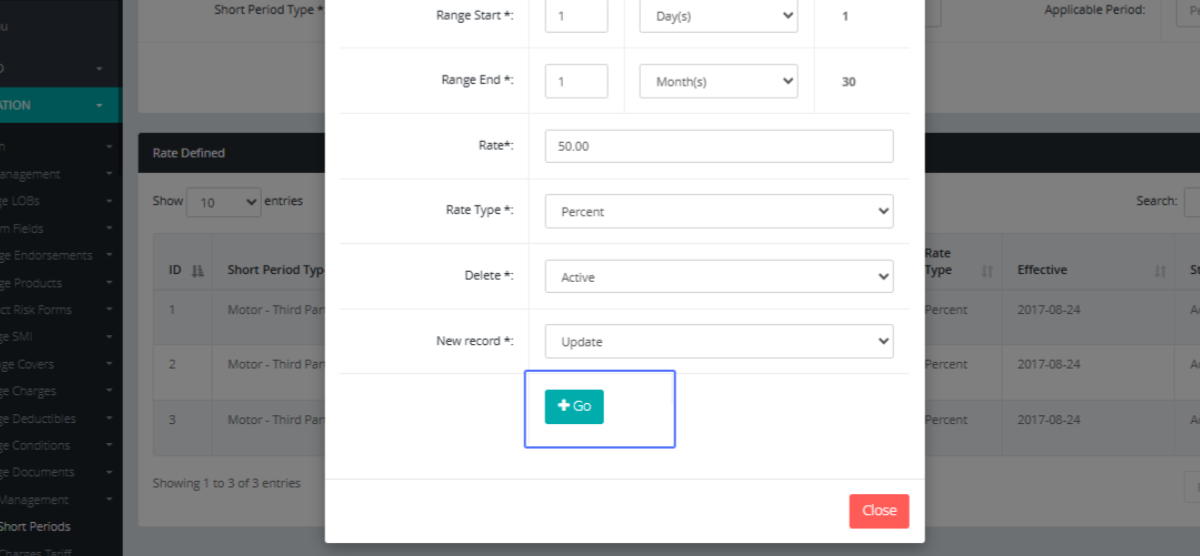
Click on the link "Close" the modal.
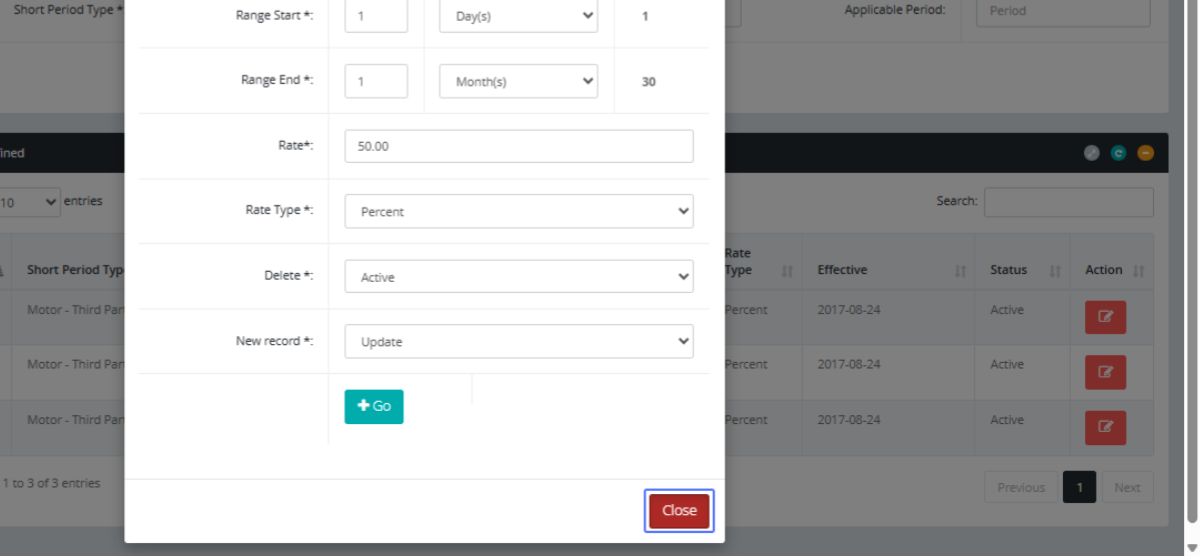
Click on the link "Charges Tariff" to access the Charges tariff page
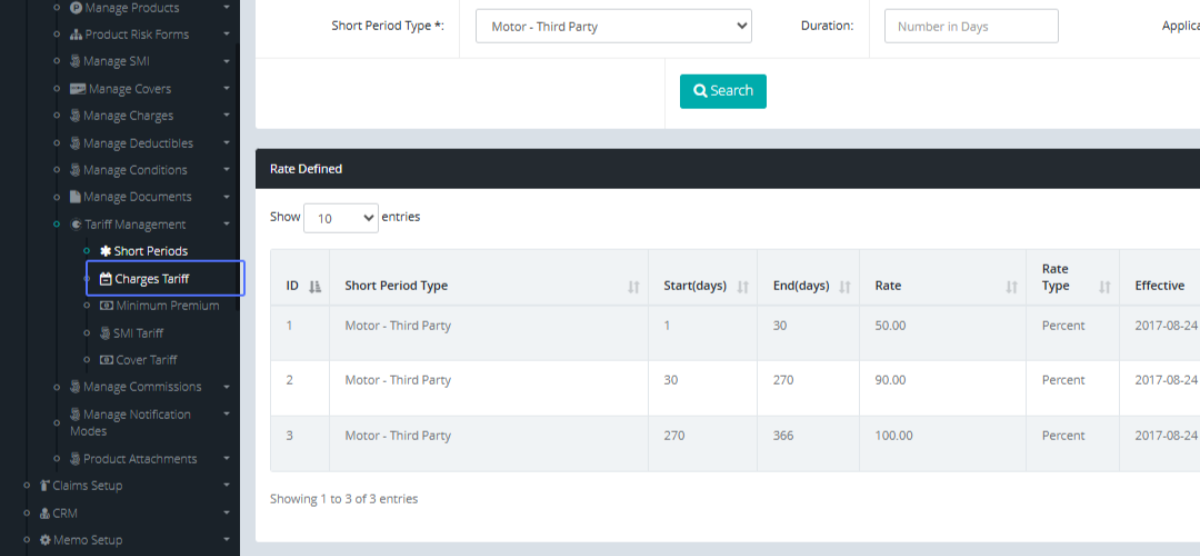
Tab Name: Charges Tariff - GENOVA INSURANCE
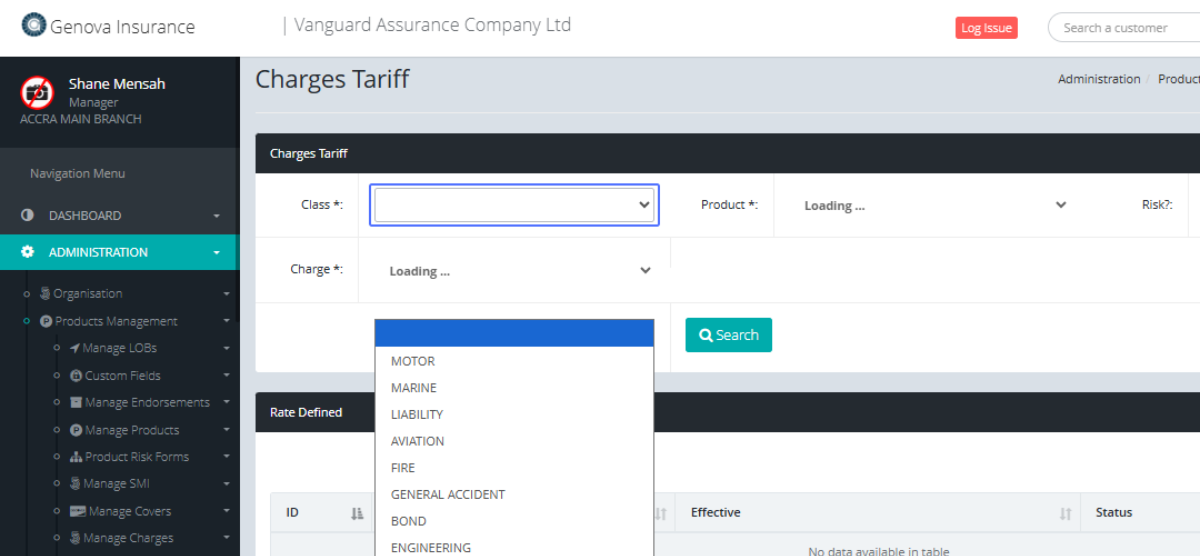
Click on the Class field and select the Class of Business from the dropdown.
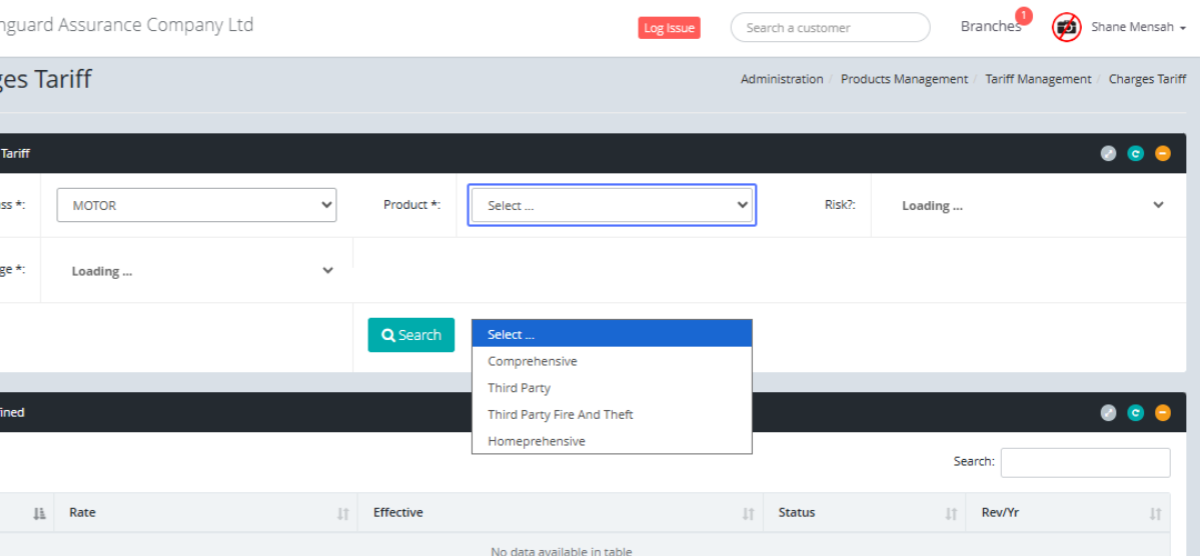
Click the Product from the dropdown list.
Set the Charge by Clicking the dropdown list.
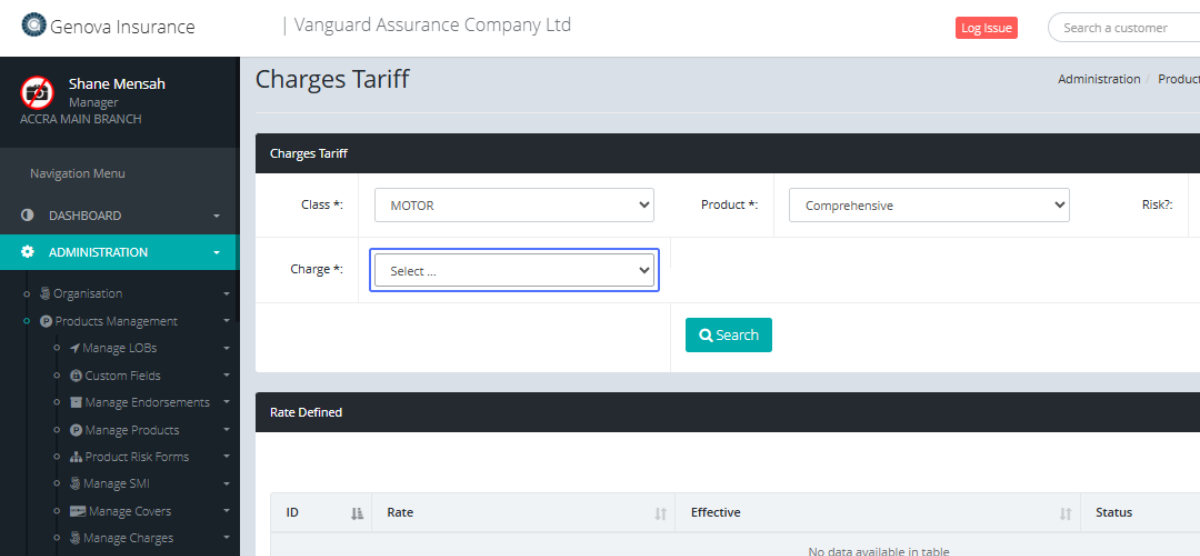
Click on the button "Search" to search for the tariffs based on the selected parameters
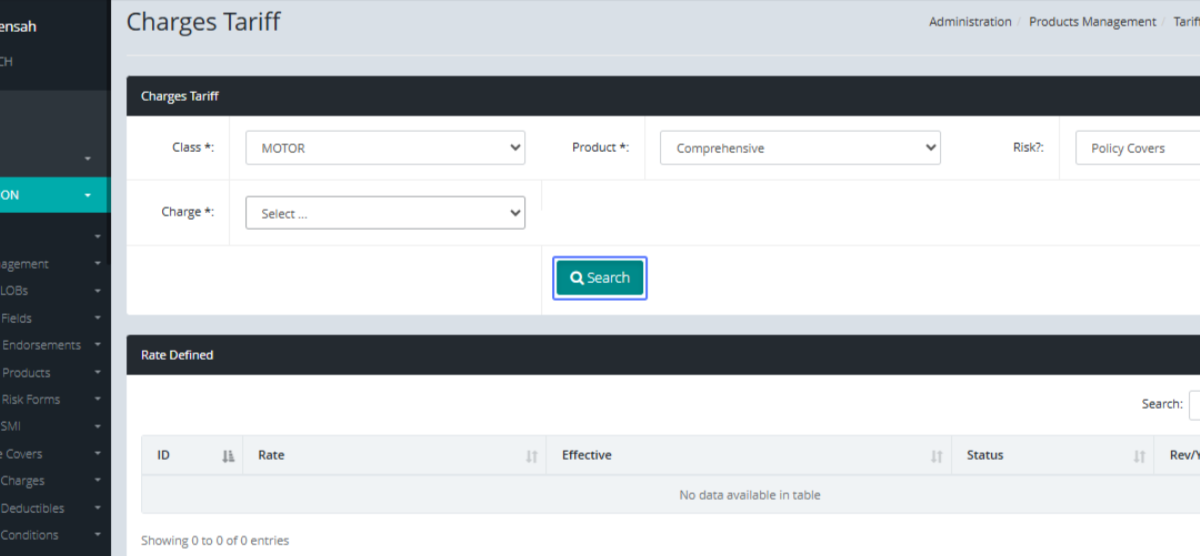
To access the Minimum Premium: Click on the link "Minimum Premium" within the sidebar.

Tab Name: Minimum Premium - GENOVA INSURANCE
On the Minimum premium Page, Click the Class of Business within the dropdown.
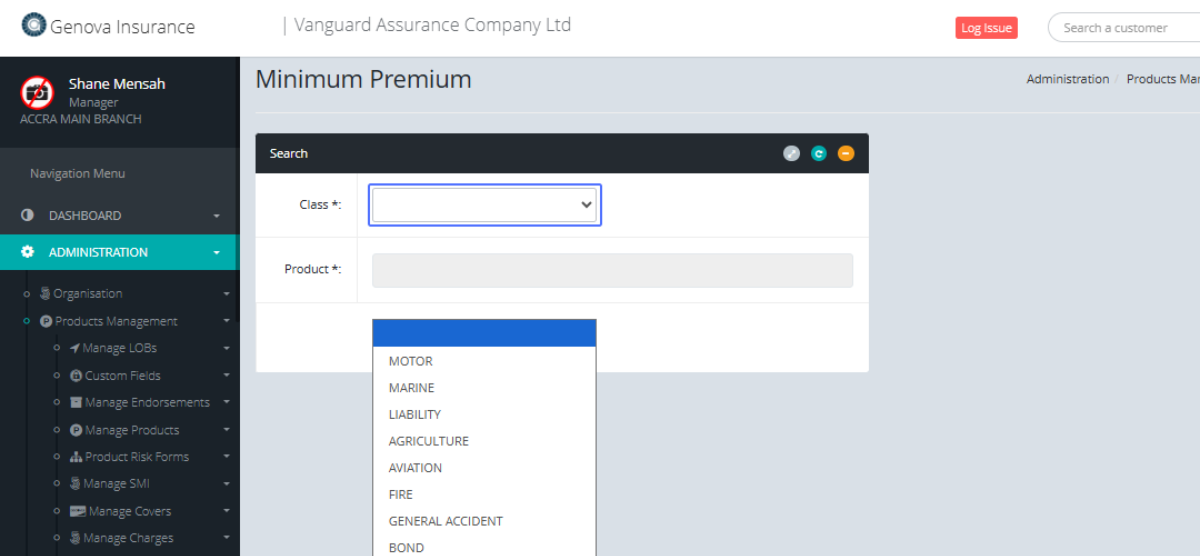
Select the Product from the dropdown
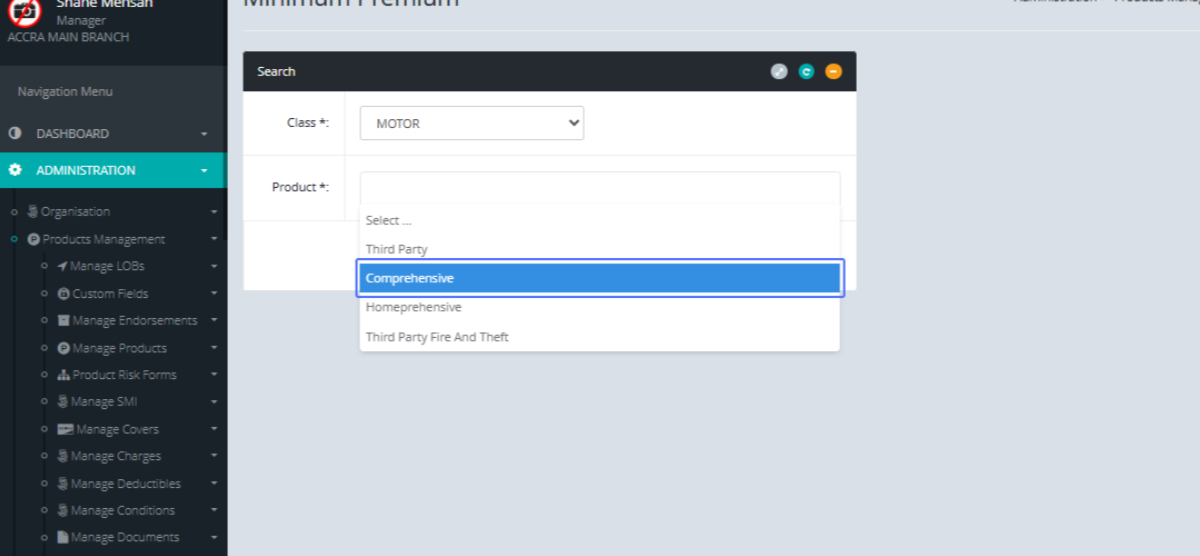
Click on the button "Go" to perform the search.
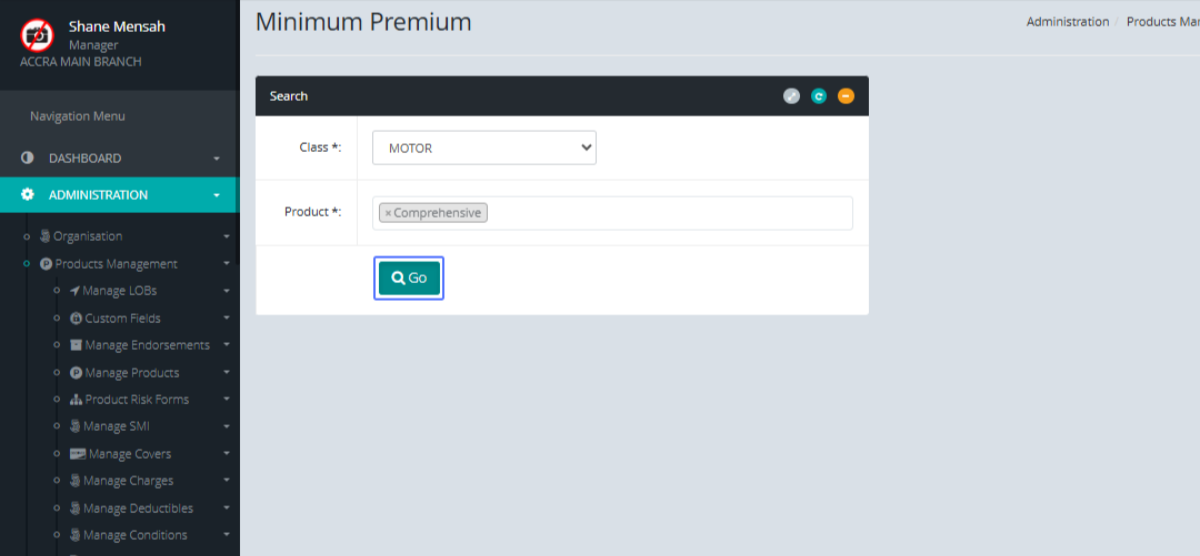
Set the Minimum Rate by entering the available items within the from provided
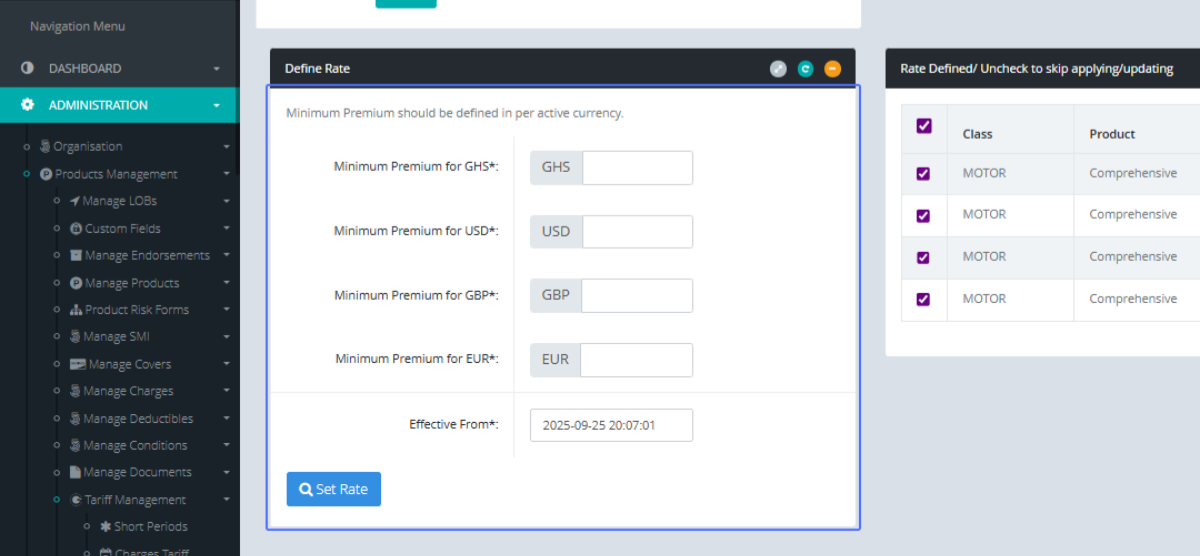
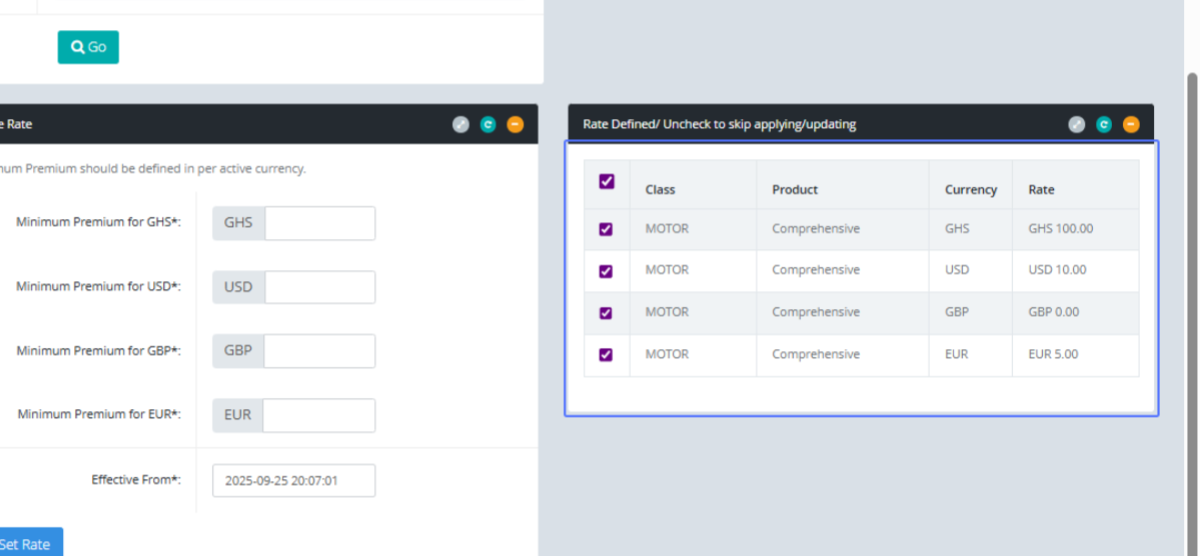
Select the checkboxes that are applicable within the Rate Defined form.
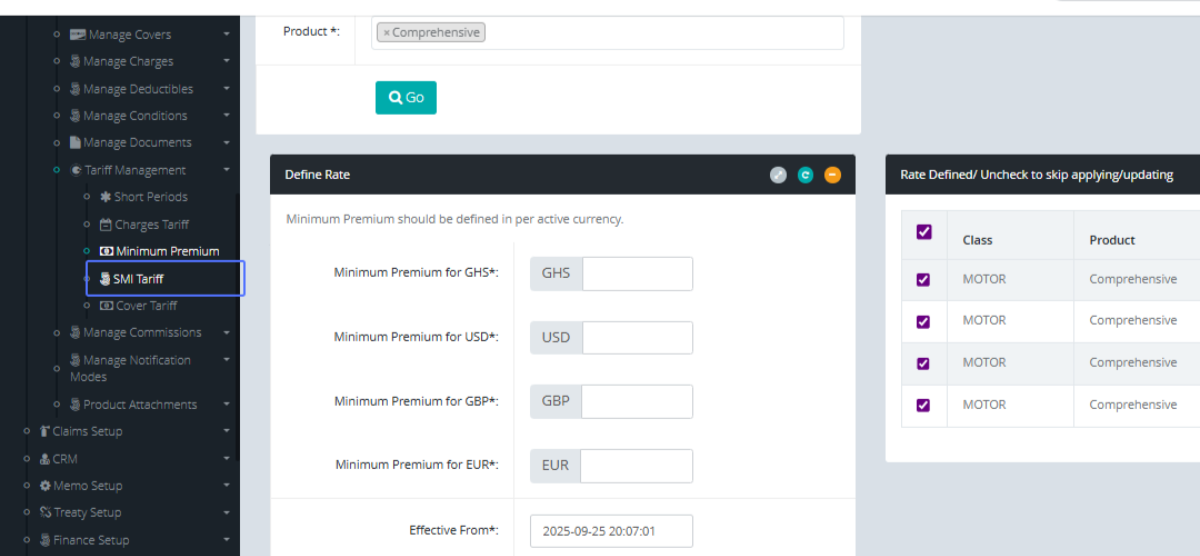
Click on the link "SMI Tariff" button to manage SMI Tariffs
Tab Name: SMI Tariff - GENOVA INSURANCE
On the SMI tariff page, Select the Product from the product dropdown.
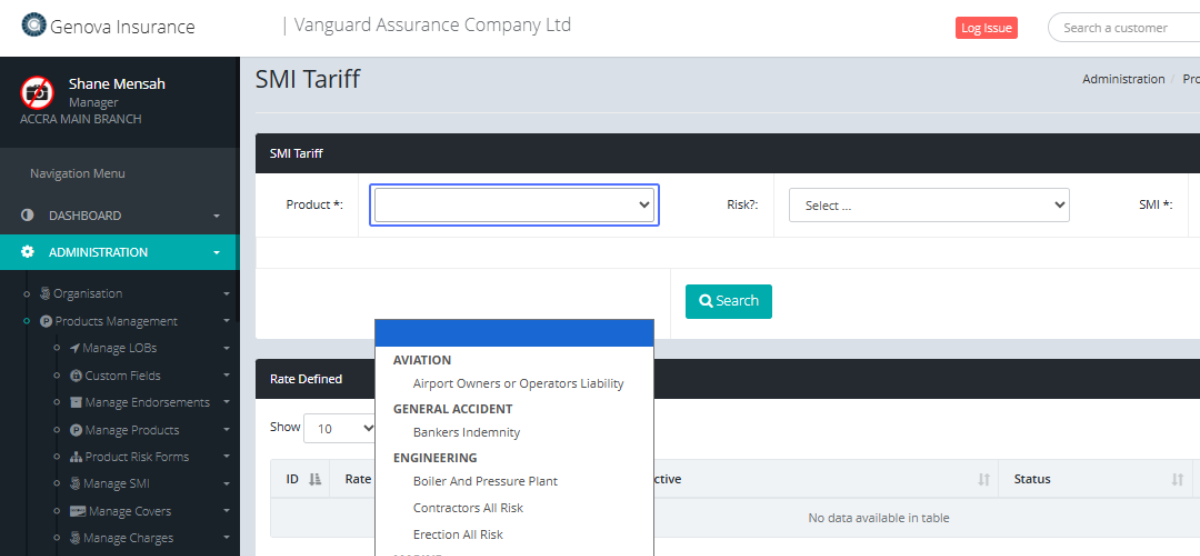
Select the preferred risk from the Risk dropdown

Select the SMI, from the SMI dropdown.
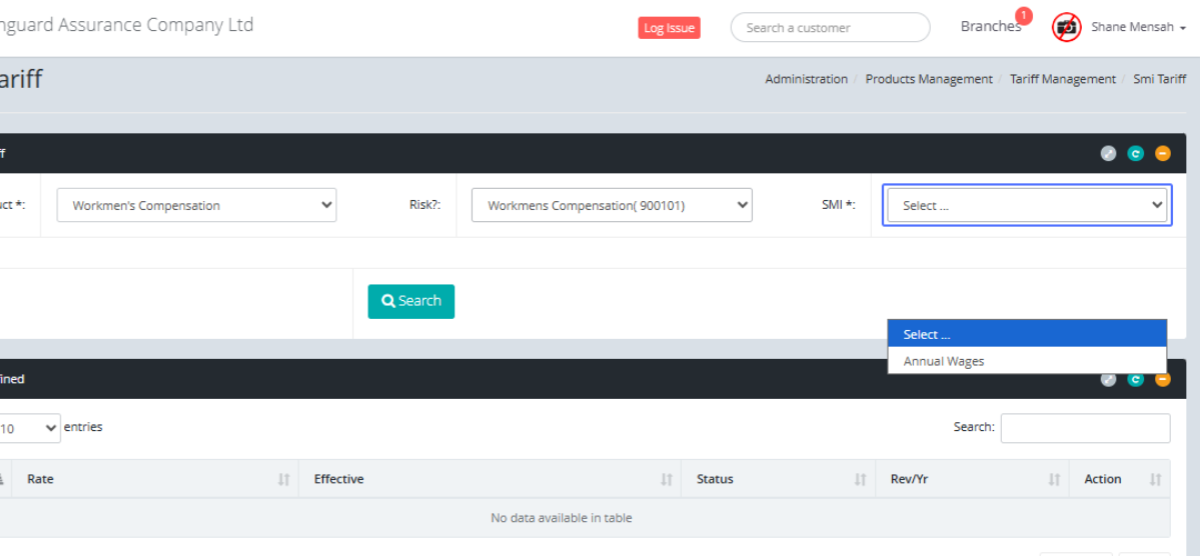
After all parameters are set, Click on the "Search" button.
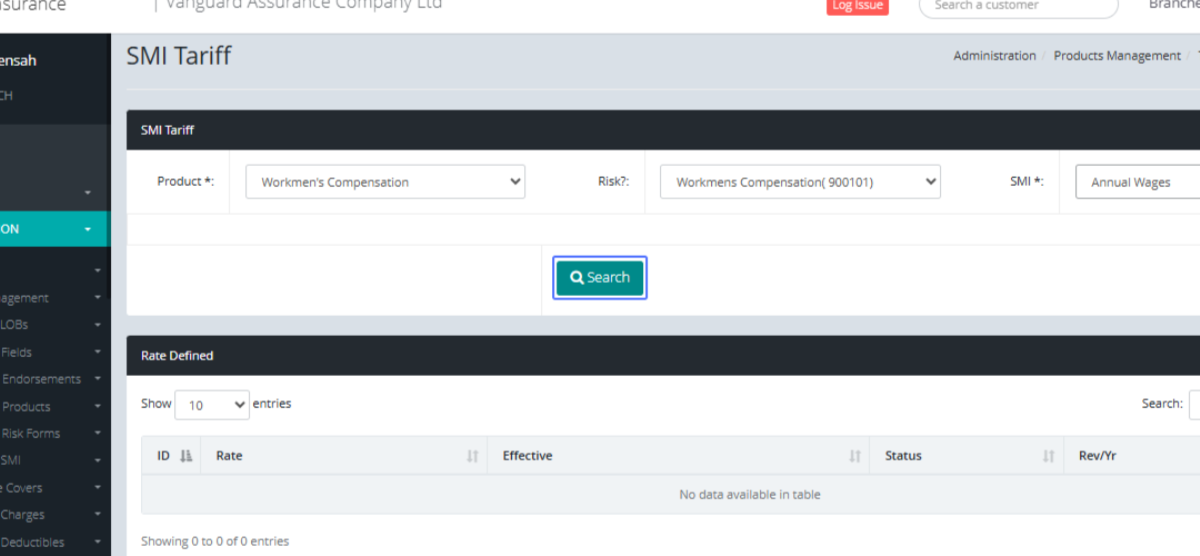
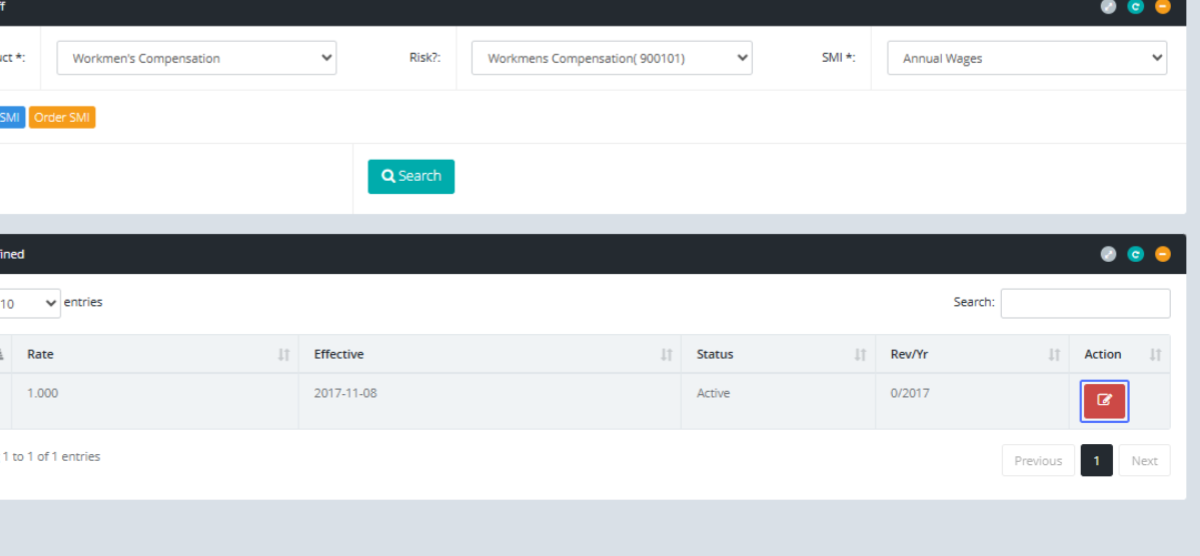
Click on the “Edit” button o edit the SMI tariff.
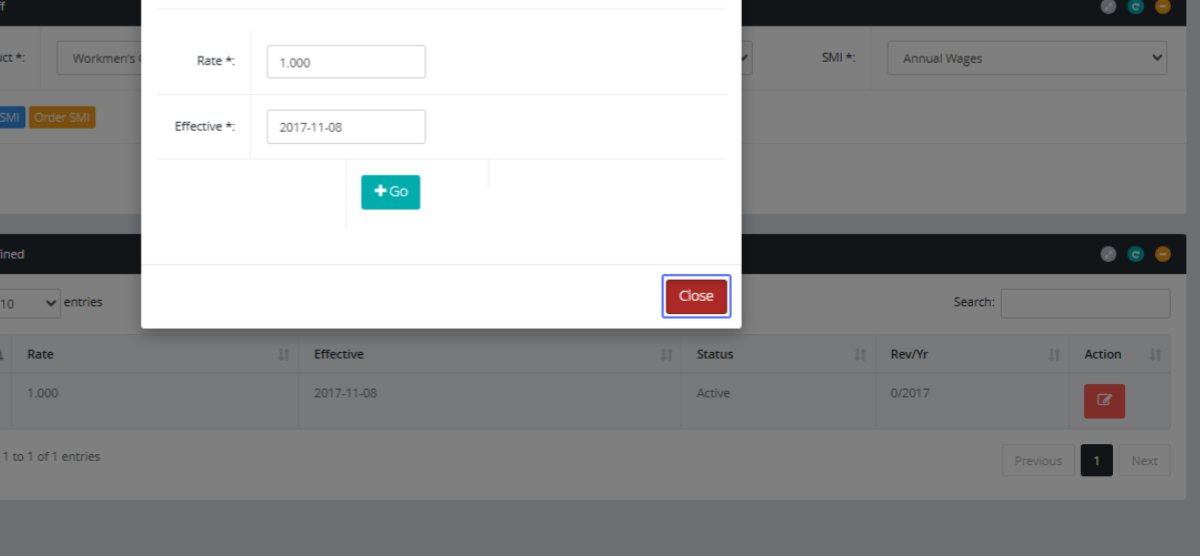
When the Modal Opens, you are given the option to set the Rate.
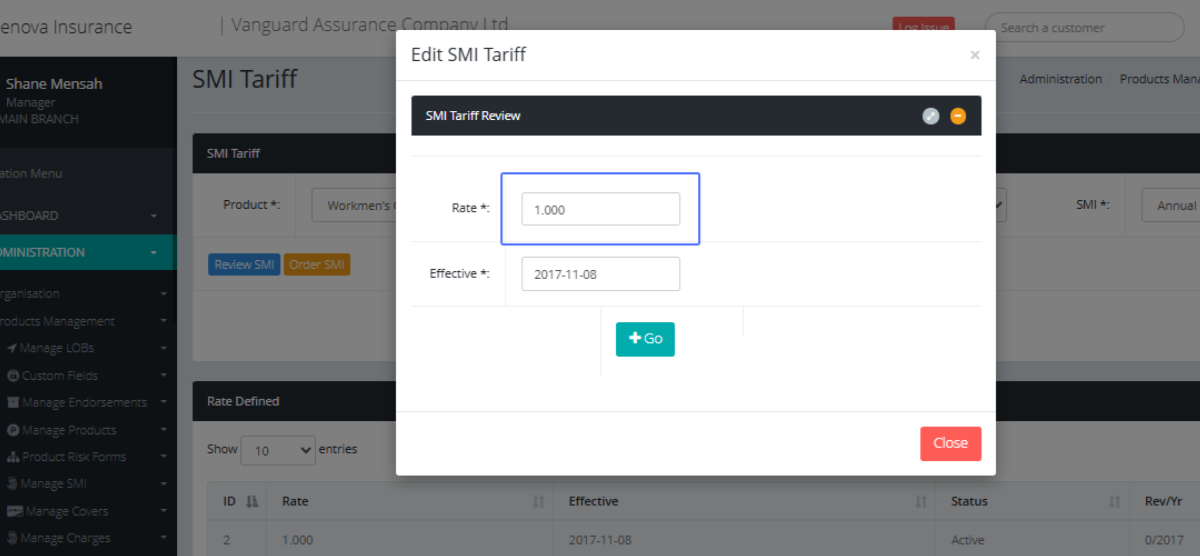
Set the Effective Date for the SMI tariff
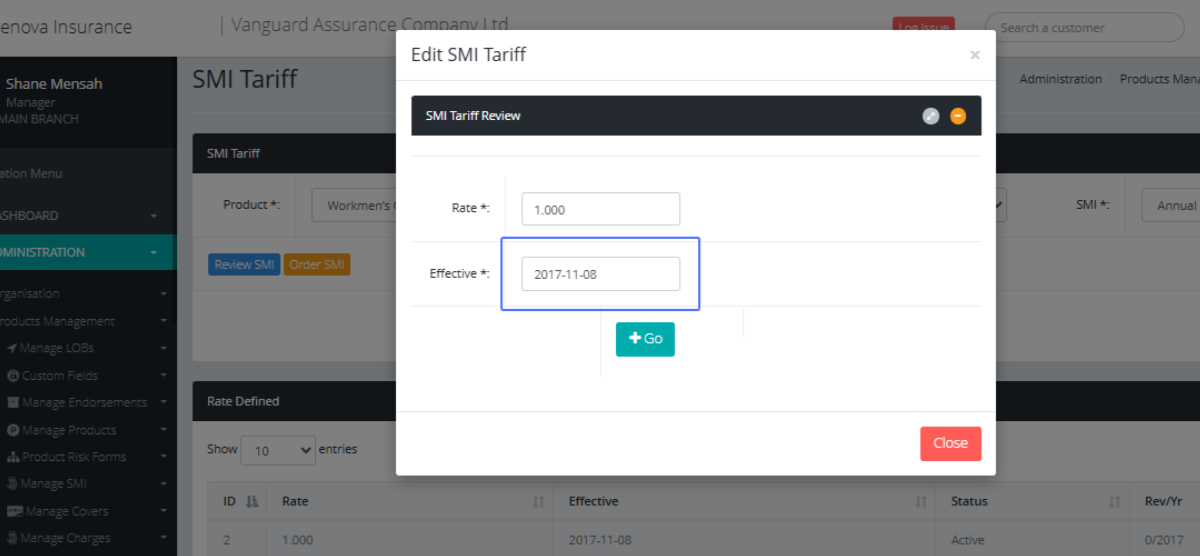
Click on the "Go" button to save the SMI tarrif

Click on the link "Close" to Close the modal.